Projects, cues & versions
Set a project up so it stays coherent, then keep the Cue Log as the one place the score's truth lives.
Creating a project properly
Two extra minutes here saves a lot later. The project type and the abbreviation both flow downstream into cue numbering, folder naming and export filenames, and retrofitting either once a project has grown is genuinely painful.
- 1
Pick the project type that matches the picture.
A linear film, a series with episodes, or a game where the timeline doesn't behave like picture-led editorial. Choose from day one — this decides how reels and episodes are structured.
- 2
Set the name, abbreviation and frame rate.
The abbreviation is the one people forget. It ends up in cue numbers, folder names and exported filenames.
- 3
Add the deadlines you know.
Composition, orchestration, mix and delivery. These feed Dashboard and Tasks — without them the app can't tell you what's urgent.
The Cue Log is the source of truth
If a fact describes the cue itself — number, title, status, versions, timecodes, reel or episode placement, notes — it belongs here and nowhere else. This is the surface that has to survive handoff.
- 1
Add cues as you spot.
In the Cue Log, ⌘N opens quick add. Elsewhere in the desktop app ⌘N starts a new project instead.
- 2
Or import in bulk.
If the project already exists in a spreadsheet or another tool, import rather than retyping.
- 3
Keep status current enough to trust.
A status nobody updates is worse than no status — it makes the board lie.
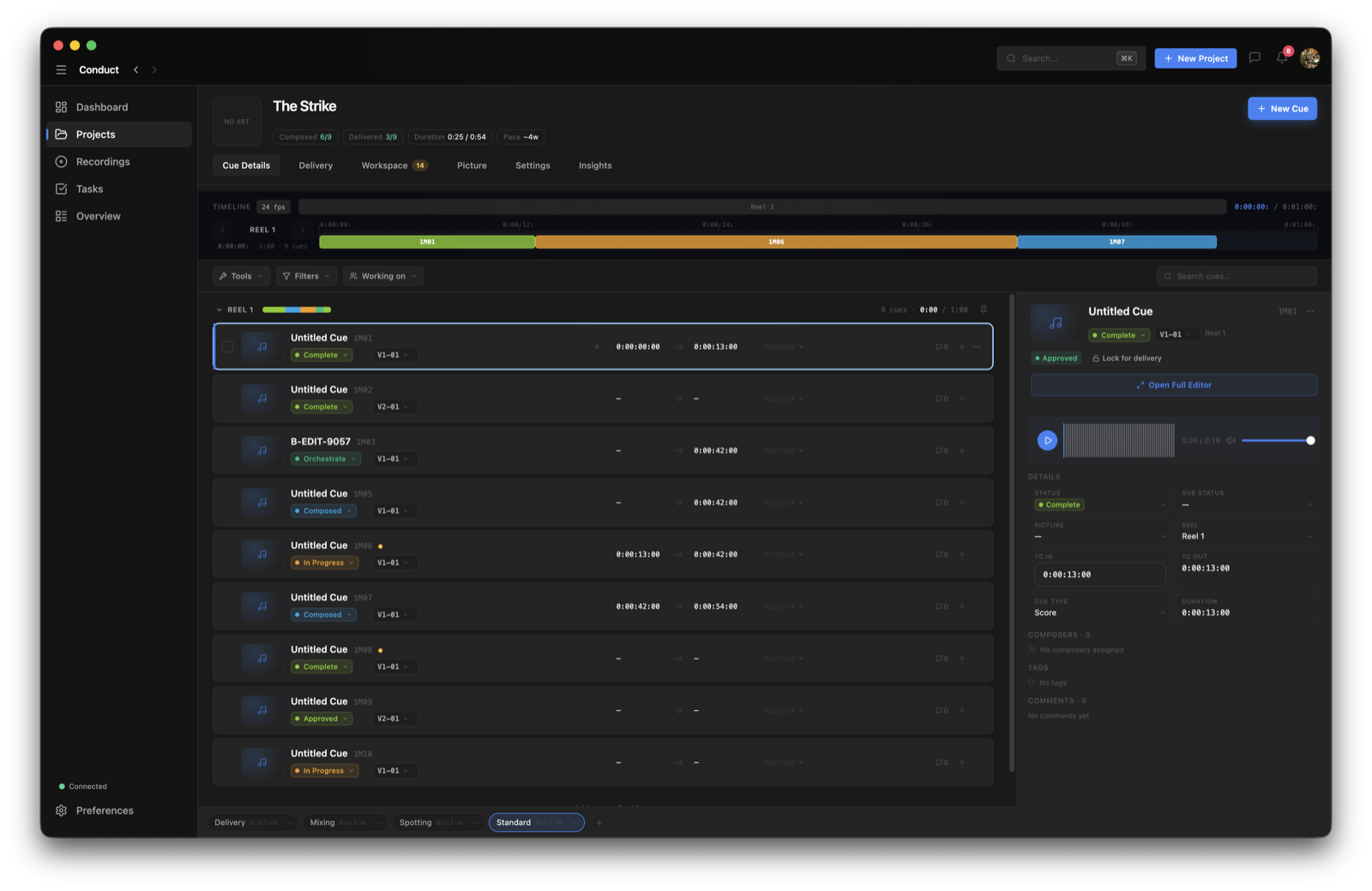
Versions, not filenames
Every cue carries a full version history, each with its own audio, notes and timecodes. This is the part that replaces naming files v2_FINAL_actualfinal — the version is a real thing in the app, so the filename stops having to carry the meaning.
- Each version holds its own audio, notes and timecodes.
- The player shows one waveform normally, and a stacked A/B view in compare mode.
- In compare mode the transport is shared, so only one version plays at a time — you're always comparing like for like.
- A bounce badge on a version means the DAW file changed after that version was made; render a new bounce to update it.
Saved layouts for real working modes
Spotting, recording, mixing and cue-sheet prep each want to see different columns. Rather than fighting one table, save a layout per mode and switch. Conduct ships sensible ones built in.
Common questions
Can I change the project abbreviation later?
You can, but it's the field most worth getting right up front — it flows into cue numbering, folder names and export filenames, so changing it once a project has real structure means a lot of downstream churn.
Should I track cue work in the Cue Log or in Tasks?
Facts about the cue — number, status, version, timecode — go in the Cue Log. Work that needs doing, assigning and scheduling goes in Tasks. Mixing the two makes both noisy; keeping them separate is what makes the app fast.
How do I compare two versions of a cue?
Open the cue and switch the player to compare mode. You get both waveforms stacked with a shared transport, so only one plays at a time and you're comparing the same moment in each.
What does the bounce badge on a version mean?
The DAW file behind that version has changed since the version was created — so what you're hearing in Conduct is older than what's in your session. Render a new bounce and it'll come in as a fresh version.
Can I import an existing cue list?
Yes. Import in bulk from a spreadsheet rather than retyping — it's in the project's settings alongside the other import routes.