Your project folder
Link a project to a folder on disk so Conduct can see your cue folders, keep their names straight, and pick up bounces.
What the Workspace is
A project's Workspace is the folder on your Mac where that project actually lives — the one holding your cue folders, your DAW sessions and your bounces. Linking it lets Conduct read your structure, tell you when something has drifted, and pick up new mixdowns without you dragging anything.
Conduct does not move your working method. You keep exporting where you always export. The folder link just means the app can see it.
Desktop only
Workspace features need the desktop app, because only it can read a folder on your Mac. On the web you'll see the cues and previews, but not the folder.
Connecting the folder
- 1
Open the project, then go to its Workspace.Workspace
- 2
Choose the folder this project lives in.Set Up Workspace
Pick the project's own root folder — the one containing its cue folders — not your whole music drive.
- 3
Let the first scan finish.
Conduct reads the folder structure and matches what it finds to the cues already in your Cue Log.
- 4
Check the Workspace tree.
The coloured dots show which cues have a folder, which are missing one, and which need a look.
Everyone links it on their own Mac
The folder link is per machine — it is never shared with your team, because the folder sits at a different path on everybody's computer. A teammate who opens the project on their Mac connects it themselves.
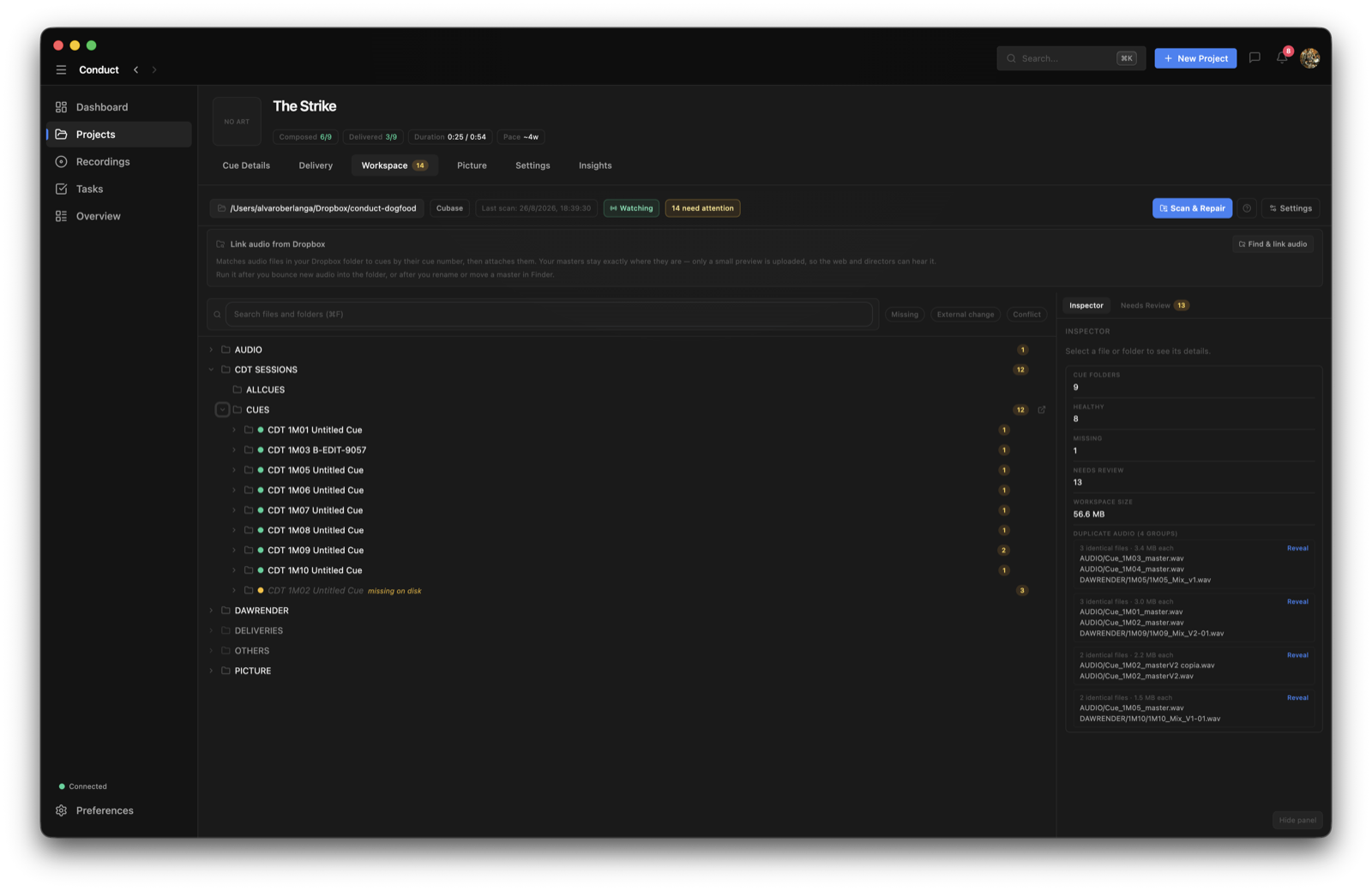
Scan & Repair — what it actually does
It is about folders, not audio
Scan & Repair never opens, moves, uploads or links an audio file. It only looks at your folder structure. Attaching audio to cues is a different job with a different button.
The scan walks your project folder and compares what's there against the naming template in Workspace Settings. It's looking for two things: cue folders that should exist and don't, and folders that were renamed or moved in Finder since the last time it looked.
The repair is the second half, and it only runs after you approve it. You get a preview listing every change first. Creating adds the missing folders. Renaming moves a folder — with everything inside it — back to the name your template expects. Nothing is ever deleted, and you can cancel the preview and walk away.
Running it
- 1
Press Scan & Repair in the Workspace header.Scan & Repair
- 2
Read the preview.
It lists folders to create and folders to rename, showing the old name and the new one.
- 3
Apply, or cancel.Apply Changes
If nothing needs fixing you'll just see a green "Workspace is healthy" note instead of a preview.
- You added or renamed cues in Conduct and want the folders on disk to match.
- You renamed a cue folder in Finder and want Conduct to line back up with it.
- You changed the folder naming template in Workspace Settings.
- The header is showing "Missing expected folders" or a count of items needing attention.
It works exactly the same way in every project, whether your masters sit on your own disk or in a shared folder. It has nothing to do with how your files are stored.
When the folder moves
If you move the project to another drive, rename its folder, or unplug the disk it lives on, Conduct will say it can't reach the workspace rather than guessing. Your data is untouched — it just can't see the folder.
- 1
Open the project's Workspace.
You'll see a "Can't reach this workspace" card instead of the tree.
- 2
If Conduct can see where the folder went, take the offer.Reconnect here
It names the exact path first — you're confirming a folder, not accepting a guess. Nothing on disk changes.
- 3
Otherwise point at it yourself.Locate…
Conduct tells you how many of the project's known cue folders it found there, so you can tell a right folder from a wrong one before committing.
Common questions
Will Scan & Repair touch my audio files?
No. It only creates and renames folders. It never opens, moves, uploads, deletes or re-links an audio file. If audio is what you want attached to cues, that is a separate action.
Does Scan & Repair delete anything?
No. It can create a folder and it can rename one, moving that folder and its contents to the expected name. It never deletes a folder or a file, and it shows you every change in a preview you can cancel.
My teammate linked the folder — why do I still have to?
Because the folder is at a different path on your Mac than on theirs. The link is stored per machine and is never shared, so each person connects it once on their own computer.
Do I need the desktop app for this?
Yes. Only the desktop app can read a folder on your machine. On the web you'll still see the project, its cues and the previews, but there is no folder to connect.
Conduct says the workspace is unreachable, but the folder is right there.
That usually means the folder was renamed or moved, or the drive it lives on isn't mounted. Open the project's Workspace and either take the reconnect offer, which names the exact path it found, or use Locate to point at the folder yourself.