Getting started
What Conduct is for, which screen does what, and the first hour that makes the rest of the app make sense.
What Conduct is for
Conduct is a cue management and collaboration tool for composers writing to picture — film, television, games. It holds the editorial truth of a score: every cue, its number, its versions, its timecodes, its audio, and who is waiting on what.
It is built around one idea: the cue list is the score's source of truth, and everything else — tasks, recording plans, director feedback, delivery — hangs off it rather than living in a separate spreadsheet.
It runs as a Mac app and in the browser. The Mac app can additionally see folders on your disk, which is what makes bounces and your project folder work; the browser covers everything else and is what your collaborators and directors use.
Which screen does what
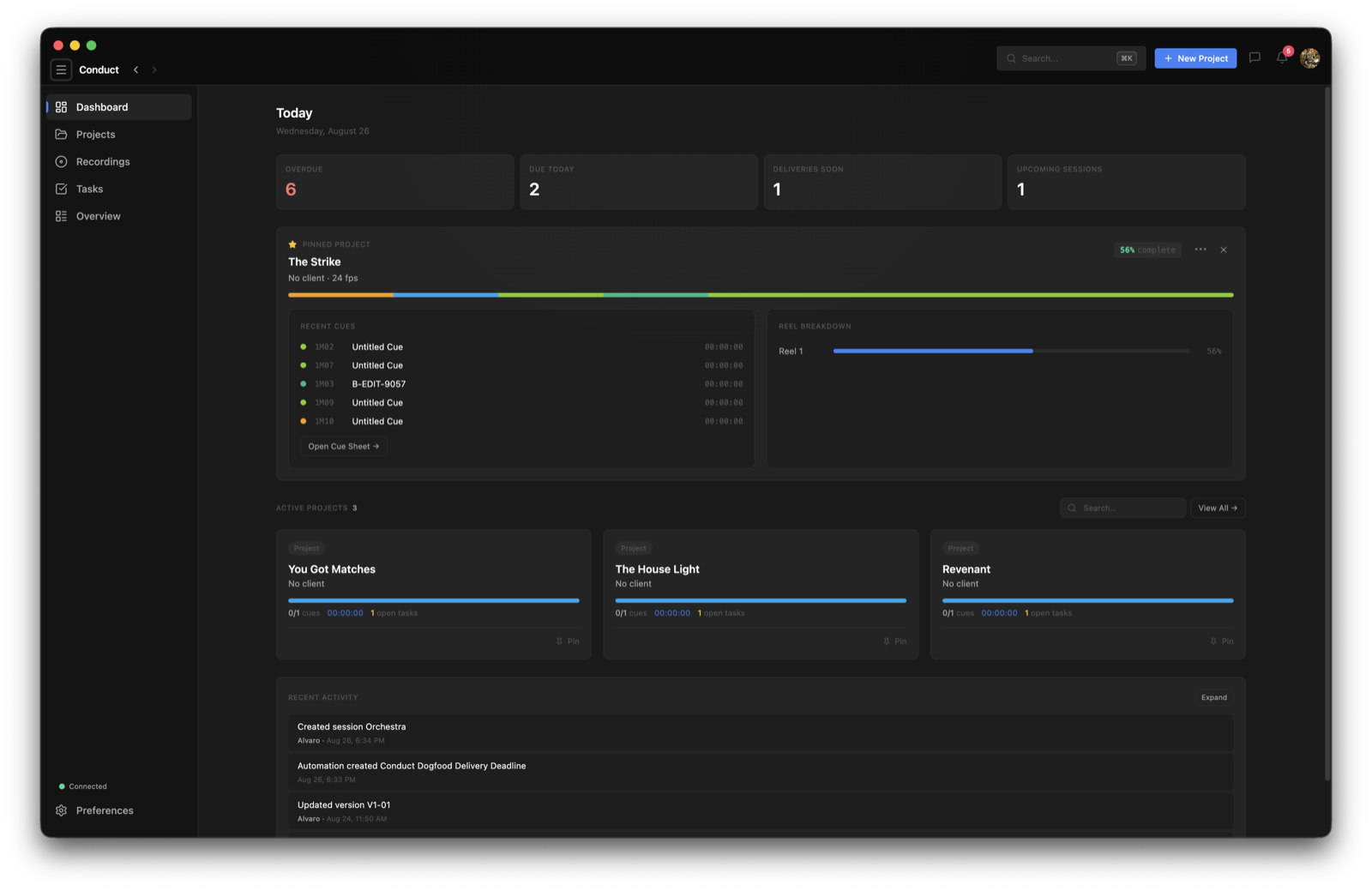
- Dashboard — where you start. What's overdue, what's coming, what's blocked, and what to do next.
- Projects — every project, and the way in to a project's cue list, picture, folder and settings.
- Recordings — recording plans: dates, running order, and which cues are being covered.
- Tasks — the action layer. Work moving through stages, across all your projects.
- Overview — the wider pulse: recent activity, upcoming sessions and how close each project is to delivery.
Cue Log is inside a project
The cue list isn't in the sidebar — it lives inside each project, because it belongs to that project. Open a project and you're there.
Your first hour
- 1
Sign in and create your organization.
You sign in with a link sent to your email — there is no password to invent or lose.
- 2
Create one real project.
Not a test one. Set its type, abbreviation and frame rate now; the abbreviation flows into cue numbering, folder names and export filenames.
- 3
Add deadlines.
Composition, orchestration, mix and delivery dates aren't decoration — they're what Dashboard and Tasks use to tell you what's urgent.
- 4
Get your cues in.
Type them, or import them in bulk if the project already exists in another tool.
- 5
Connect the project's folder.
Desktop app only. This is what makes bounces file themselves.
- 6
Invite whoever you're working with.
Collaborators take a seat; directors and supervisors review for free through a link.
The habit that makes it work
Keep four things aligned and the rest of the app gets easy: editorial truth in the Cue Log, execution truth in Tasks, priority in Dashboard, and conversation in chat and cue threads.
The common failure is duplicating cue state into a second to-do list somewhere else. If a fact describes the cue — its number, status, version, timecode — it belongs in the Cue Log and nowhere else.
Common questions
Do I need the Mac app, or is the browser enough?
The browser covers cues, versions, chat, tasks and review. The Mac app adds everything that needs to see your disk: connecting a project folder, picking up DAW bounces, offline editing and the on-device analysis tools. Most composers use the Mac app and let collaborators use the browser.
Is there a password?
No. You sign in with a link sent to your email address, so there's no password to store, forget or leak.
Do directors and music supervisors need an account?
No. You send them a review link that opens in any browser. They don't sign up, don't install anything, and don't take a paid seat.
Where is the cue list?
Inside each project rather than in the sidebar, because a cue list belongs to one project. Open the project and it's the main surface.
What should I do first, on a real project?
Set the project's abbreviation, frame rate and deadlines before you add cues. Those decisions flow into cue numbering, folder naming and export filenames, and they are noticeably more annoying to change once a project has grown.