Dropbox mode
Keep full-quality masters in your shared folder instead of uploading them, and link each cue to its file.
What Dropbox mode is
Normally Conduct compresses your master and uploads it to the cloud. In Dropbox mode it doesn't. Your full-quality WAV and MOV masters stay in the shared folder where they already live, and Conduct records where each one is instead of taking a copy.
So that people without that folder can still hear the work, Conduct makes a small preview of each master — 192 kbps AAC — and uploads only that. On the desktop app you play the real master at full quality. On the web, teammates and directors play the preview.
There is no Dropbox account to connect
Conduct never talks to Dropbox. There is no login step, no authorisation screen, and no integration to set up. "Dropbox mode" just means your project folder happens to be one that Dropbox keeps in sync — it works identically with any folder that syncs itself, and it would work with a plain local folder too.
It's off by default and it's an organization-wide setting. Most studios should stay on the normal upload mode unless masters already live in one shared folder the whole team can reach.
Turning it on
- 1
Open Settings → Organization.Organization
Only the organization owner can change this — it decides where every project's masters live.
- 2
Switch on Dropbox mode and confirm.
Conduct explains what changes before it applies anything, and you can switch back later. Files already in the cloud stay reachable.
- 3
Tell your team.
It applies to everyone at once, and each person has a one-time setup step of their own — the next section.
Setting it up on your Mac
This is the step people miss. Turning the mode on organization-wide does not connect anything on your computer. Each person points Conduct at the shared folder on their own machine, once per project.
- 1
Make sure the shared folder is syncing on your Mac.
You should be able to open it in Finder.
- 2
Open the project and connect its folder.Connect folder…
Same folder link as any project — see Your project folder.
- 3
Link the audio.Find & link audio
Conduct nudges you to do this right after connecting.
Before you've connected it
You can still hear everything — the previews play. Conduct will tell you that's what you're hearing, so you're never quietly listening to a compressed version while thinking it's the master.
Find & link audio — what it actually does
This is the button that attaches audio to cues. It looks through the folder you connected, reads each audio file's name for a cue number, and attaches the file to the matching cue. Then it makes the small preview and uploads that.
- It matches on the cue number in the filename — so 3M04 finds cue 3M04.
- Your master is never moved, renamed, or uploaded. Only the preview is uploaded.
- Files it can't place confidently are queued for you to confirm instead of being guessed at.
- It never downloads a large file to your Mac behind your back.
When to press it
- 1
After you first connect the folder.
This is the initial pass that links everything already there.
- 2
After you bounce new masters into the folder.
Conduct also notices changes on its own, but pressing it is the way to be sure.
- 3
After you rename or move a master in Finder.
The scan re-finds masters that moved and relinks them.
Not the same button as Scan & Repair
Scan & Repair, up in the Workspace header, fixes FOLDER names and structure and never touches audio. Find & link audio deals with the audio files themselves. They are unrelated jobs that happen to sit on the same screen.
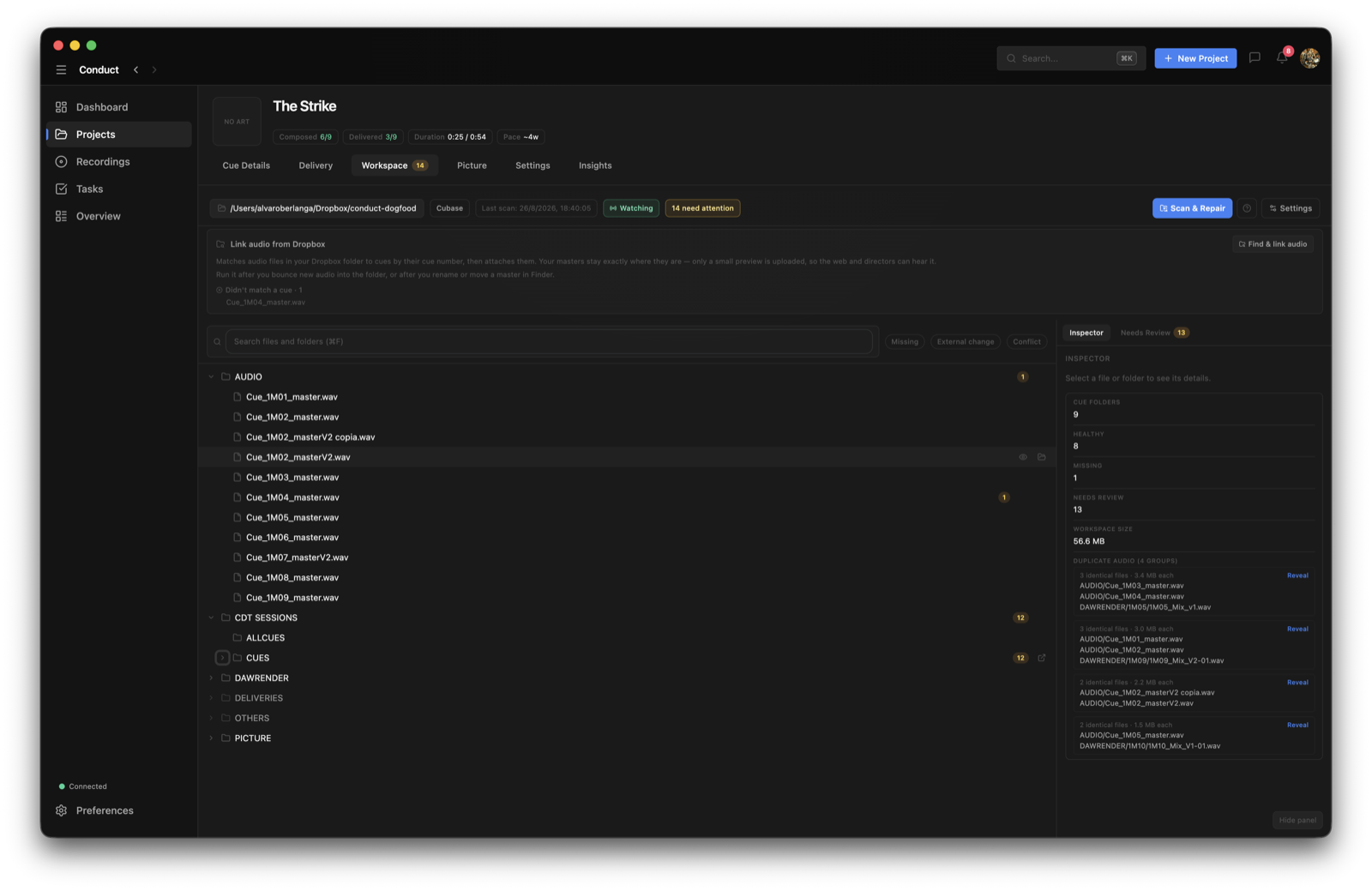
Reading the status dots
Cues show a small dot when their master needs your attention. A healthy, in-sync cue shows nothing at all — silence means everything is fine.
- Updating preview — you changed the master, so Conduct is making a fresh preview. The old one keeps playing meanwhile.
- Online only — the master isn't downloaded to this Mac. Right-click it in Finder and choose Make available offline, then re-check.
- Master missing — Conduct can't find the file where it was. It may have been moved or deleted; the existing preview still plays.
- Needs attention — Conduct couldn't make a preview from that master. Open the cue's Audio tab or the link panel to retry.
Common questions
Do I need to connect or log in to Dropbox?
No. Conduct never talks to Dropbox and there is no account to connect, no login, and no integration to authorise. Dropbox mode only means your project folder is one that Dropbox syncs; Conduct just reads a folder on your Mac.
Are my master files uploaded anywhere?
No. Masters stay in your shared folder and are never uploaded. Conduct uploads only a small 192 kbps AAC preview per file, so people on the web and directors on a review link can still hear the work.
What's the difference between Scan & Repair and Find & link audio?
Scan & Repair fixes your folder structure — it creates and renames folders on disk and never touches audio. Find & link audio attaches audio files to cues and makes previews. They are separate jobs; Scan & Repair works the same in every project whether or not you use Dropbox mode.
A cue says the file is online only. What do I do?
That master hasn't been downloaded to your Mac. Find it in Finder, right-click and choose Make available offline, wait for it to download, then re-check in the link panel. Conduct will never pull a large file down on its own.
Why does my teammate hear a lower quality version than I do?
On the desktop app, with the shared folder connected, you play the real master. Anyone on the web — including directors on a review link — plays the preview. If a teammate on desktop is hearing the preview, they haven't connected the shared folder on their machine yet.
Can we switch back to normal uploads?
Yes. The organization owner can turn it off at any time from Settings → Organization, and files already in the cloud stay reachable.